
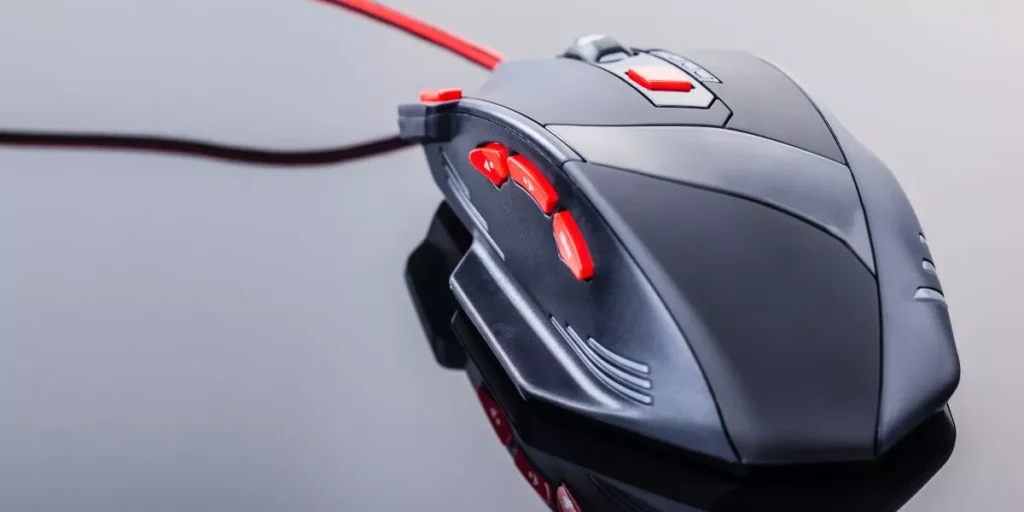
If your gaming mouse is acting up, there are specific steps you can take to address the most common issues. Have you ever encountered erratic cursor movements or unresponsive clicks during intense gameplay? You might be surprised how a few simple troubleshooting techniques can make a significant difference in your gaming experience. By exploring these practical solutions, you can get back to dominating your favorite games without missing a beat.
Connectivity Problems
If your gaming mouse frequently disconnects or stops responding, troubleshoot connectivity problems by checking the USB port and cable connections.
Start by ensuring that the USB port you’re using is functioning correctly. Try plugging the mouse into a different USB port on your computer to see if the issue persists. Sometimes, a faulty USB port can cause intermittent connectivity problems.
Next, inspect the cable connecting your gaming mouse to the computer. Make sure the cable isn’t frayed or damaged in any way. If you notice any signs of wear and tear, consider replacing the cable with a new one. A damaged cable can lead to connectivity issues, causing your mouse to disconnect or stop working unexpectedly.
Additionally, try using your gaming mouse on a different computer to determine if the problem lies with the mouse itself or your computer’s settings. By following these steps, you can effectively troubleshoot and resolve common connectivity problems with your gaming mouse.
Cursor Movement Glitches
To address cursor movement glitches with your gaming mouse, investigate potential software conflicts or driver issues that may be affecting its performance. Start by checking if there are any conflicting software programs running in the background that could be interfering with your mouse’s functionality. Some applications, especially those related to customization or monitoring, might conflict with the mouse drivers and cause erratic cursor movements.
Another step to troubleshoot cursor movement glitches is to ensure that your mouse drivers are up to date. Outdated or corrupted drivers can lead to performance issues, including erratic cursor behavior. Visit the manufacturer’s website or use their software to check for driver updates and install them accordingly.
Additionally, try using a different USB port for your gaming mouse. Sometimes, faulty or overloaded USB ports can cause cursor movement glitches. By switching to another port, you can rule out potential hardware-related issues affecting the mouse’s performance.
Button Malfunctions
Investigate potential causes of button malfunctions on your gaming mouse to troubleshoot and resolve the issue efficiently. If you encounter issues with your mouse buttons not registering clicks or performing erratically, the problem could be due to debris or dirt interfering with the button sensors. To address this, try gently cleaning around the buttons using compressed air or a small brush to remove any particles that may be causing the malfunction.
Another common reason for button malfunctions is wear and tear on the internal components. Over time, the mechanical parts inside the mouse buttons can degrade, leading to inconsistent performance. In such cases, you may need to replace the faulty switches or contact the manufacturer for repair options.
Additionally, software-related issues such as outdated drivers or conflicting programs can also cause button malfunctions. Ensure that your mouse drivers are up to date and that there are no conflicting software applications running in the background to rule out these potential causes.
Sensitivity and Calibration Issues
Regularly check the sensitivity settings and calibration of your gaming mouse to ensure optimal performance during gameplay. Sensitivity refers to how responsive the mouse is to your movements, while calibration ensures that the mouse accurately translates those movements on the screen. If you notice issues such as the cursor moving too quickly or slowly, or if the mouse seems unresponsive or erratic, it may indicate sensitivity or calibration problems.
To troubleshoot sensitivity and calibration issues, start by adjusting the sensitivity settings in your mouse software. You can usually do this by accessing the settings menu and fine-tuning the sensitivity levels to better suit your preferences and playing style. Additionally, make sure to calibrate your mouse on a flat, even surface to guarantee accurate tracking.
Regularly cleaning your mouse sensor and mouse pad can also help prevent sensitivity and calibration issues. Dust and debris can interfere with the sensor’s accuracy, leading to erratic behavior. By maintaining cleanliness and checking sensitivity settings, you can ensure a smooth gaming experience without any hindrances.
Gaming


![Gaming Chair,Ergonomic Computer Gaming Chair,400lb Load-Bearing,Retractable Footrest/Waist Support/Ergonomic Backrest[Spring + 4D Sponge] (Grey)](https://i2.wp.com/m.media-amazon.com/images/I/416iHsAT3zL.jpg?w=500&resize=500,0&ssl=1)


